
Botões de compartilhamento
Increase your website’s reach and engagement with customizable share buttons that make content sharing effortless. With just one click, your visitors can spread your posts, products, or pages across 40+ social media channels—helping you boost traffic, visibility, and brand awareness instantly.


Selecione suas redes sociais:
Clique em uma rede para adicioná-la ou removê-la da sua visualização. Já incluímos as redes mais populares.


Botões de compartilhamento online

Botões de compartilhamento fixos
Copy the code below and paste it in the <head></head> or <footer></footer> tags of your website:
Copie o código de colocação abaixo e cole-o onde você quiser que seus novos botões de compartilhamento apareçam:

Trusted by Over 3 Million Websites Globally
Sign Up and Get More With a ShareThis Account

Save Your Configurations
Save your button configurations, manage multiple sites, and invite teammates to collaborate.

Unlock Sharing Intelligence®
Harness the power of analytics: see what content gets shared and where your audience engages.

Access All Free Website Tools
Access more free tools to grow traffic, increase engagement, and support privacy and consent needs.
Os nossos Botões de Partilha
Dê poder aos visitantes do seu site para expandir a viralidade do seu conteúdo, produtos, imagens e vídeos através de mais de 40 canais sociais

Botões de Partilha Inline
Adicione botões de partilha perto da sua manchete ou produto para uma visibilidade ideal

Botões Sticky Share
Manter botões de partilha ancorados para que os visitantes possam partilhar enquanto se deslocam

Botões de Partilha de Imagem
Deixe o seu público partilhar os seus conteúdos visuais mais poderosos

Botões de Partilha de Vídeo
Dê poder ao seu público para compartilhar vídeos no seu site com um clique
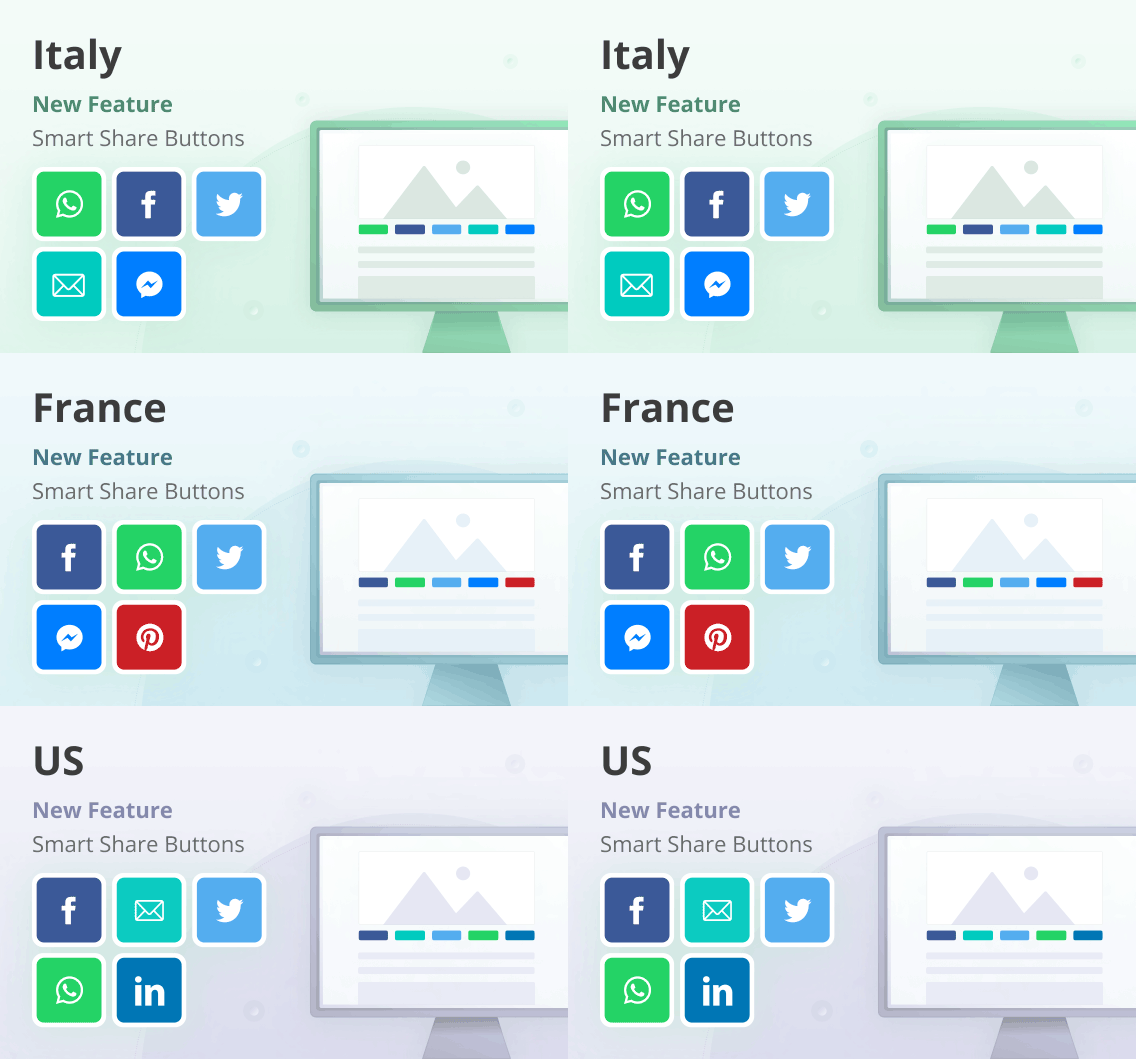
AI-Driven Smart Sharing Buttons
Retire os palpites da selecção dos canais sociais certos para o seu público com a nossa nova funcionalidade para os botões Inline e Sticky Share.
We automatically customize the channels based on the most popular sharing in your user’s region using ML algorithms. Sign up or login to our platform to start driving more engagement for your content or products.
Botões de compartilhamento de mídia social populares
Escolha instalar botões de partilha de mais de 45 dos canais sociais mais populares.



Totalmente gratuito
Sempre livre para usar e pronto para o ajudar a fazer crescer o seu público imediatamente.
Personalizável
Personalize o desenho incluindo o alinhamento, tamanho e cor para combinar com a sua marca

Otimizado para dispositivos móveis
Criado para ser incrível em qualquer tela, grande ou pequena.

Apoio Multilinguístico
Escolha a sua língua preferida entre mais de 15 opções

Plugin do WordPress
Integração perfeita com sua plataforma de sites favorita

Analytics
Insights simples e digeríveis sobre o que ressoa com o seu público
Perguntas frequentes
Tem alguma pergunta sobre os nossos produtos e serviços? Não procure mais!
Sim! Desde 2007, fornecemos botões de compartilhamento gratuitos para possibilitar o compartilhamento de conteúdo na web aberta.
Você pode instalar o botão ShareThis share em seu site HTML em um poucas etapas simplesAcesse a página de configuração e escolha a sua preferência de Botões Inline ou Botões Sticky.
Em seguida, selecione os botões de compartilhamento desejados. Você pode personalizar seu design escolhendo o alinhamento, o tamanho do botão, a frase de chamariz e a contagem de compartilhamento. Assim que o design do botão estiver pronto, clique em “registrar e obter o código” para obter o código do botão.
Confira este post de suporte para mais detalhes sobre Como instalar botões de compartilhamento em um site HTML.
ShareThis botões de compartilhamento para WordPress oferecem a você mais controle sobre onde e como os botões de compartilhamento aparecem em seu site. Melhor ainda, não há necessidade de copiar e colar código, já que tudo é controlado por meio de nossa plataforma e das configurações do plugin. Baixando e instalando nosso plugin em seu site WordPress leva menos de cinco minutos. Veja o tutorial de instalação e experimente hoje mesmo!
A instalação de botões de partilha no Wix leva alguns passos simplesAcesse a página de configuração para escolher a sua preferência de botões em linha ou fixos.
Em seguida, selecione os botões de compartilhamento desejados. Você pode personalizar seu design escolhendo o alinhamento, o tamanho do botão, a frase de chamariz e a contagem de compartilhamento. Assim que o design do botão estiver pronto, clique em “registrar e obter o código” para obter o código do botão. Depois de criar seus botões de compartilhamento, você pode clicar no botão “registrar e obter o código” para obter o código do botão de compartilhamento. Copie o código em “Instalar sharethis.js em seu site”. Em seguida, faça login em sua conta Wix para inserir o código HTML na caixa de texto.
Confira este post de suporte para mais detalhes sobre Como instalar botões de compartilhamento no Wix.
A instalação de botões de compartilhamento na Weebly leva alguns passos simples. Navegue ao página de configuração para escolher a sua preferência de botões em linha ou fixos.
Em seguida, selecione os botões de compartilhamento desejados. Depois de criar seus botões de compartilhamento, você pode clicar no botão “registrar e obter o código” para obter o código do botão de compartilhamento. Assim que o design do botão estiver pronto, clique em “registrar e obter o código” para obter o código do botão. Depois de criar seus botões de compartilhamento, você pode clicar no botão “registrar e obter o código” para obter o código do botão de compartilhamento. Copie o código em “Instalar sharethis.js em seu site”. Em seguida, faça login em sua conta do Weebly para inserir o código HTML na caixa de texto.
Prefere personalizar seus botões de compartilhamento? Ótimo! Nosso código de compartilhamento permite que você crie botões personalizados do zero. Cuidaremos do compartilhamento e da contagem para você.
Confira este post de suporte para mais detalhes sobre Como criar botões de compartilhamento personalizados no ShareThis.
Actualmente, algumas plataformas de mídia social (tais como Instagram ou Tik Tok) restringem a sua API e, portanto, não é possível partilhar o conteúdo através de um ponto final através de uma aplicação fora do seu ambiente. No entanto, oferecemos um Botão social do Instagram , Botão de Seguimento da Ficha Tik (e mais!) que pode adicionar ao activar os Botões de Seguimento.
No. When no ShareThis account or property is provided, the script automatically initializes using anonymous mode.
Now all you need to do to use our share buttons is place this script in your website code:
Next, depending on what kind of share buttons you want use, you can simply place the following HTML where you want the buttons to show:
Notice the “data-type” attribute in the first div. It accepts two values “inline-share-buttons” or “sticky-share-buttons”
The value of the data-type attribute determines the button layout:
-inline-share-buttons renders buttons inline within page content.
-sticky-share-buttons renders floating buttons on the left or right side of the browser window.
Each <strong><span></strong> inside the container represents a social network, defined by its <strong>data-network</strong> attribute.
To add a social media network button, place a element with a data-network attribute inside the ShareThis wrapper
The value of data-network must be the lowercase identifier of a supported social network.
Example wrapper:
Example network button:
You can include multiple elements inside the wrapper. The order of the elements determines the order in which the buttons appear.
Complete example:
Once added, the corresponding social network buttons will automatically render on your website.
The current list of supported social media networks you can place in your share buttons container code are:
‘facebook’
‘x’
’email’
‘whatsapp’
‘linkedin’
‘reddit’
‘tumblr’
‘diigo’
‘digg’
‘flipboard’
‘copy’
‘meneame’
‘fark’
‘facebook-messenger’
‘odnoklassniki’
‘sina-weibo’
‘vk’
‘blogger’
‘snapchat’
‘xing’
‘mail-ru’
‘livejournal’
‘pinterest-pin’
‘buffer’
‘douban’
‘evernote’
‘bookmarks’
‘gmail’
‘hackernews’
‘houzz’
‘instapaper’
‘line’
‘pocket’
‘print’
‘qzone’
‘iorbix’
‘kakao’
‘kindleit’
‘kooapp’
‘microsoftteams’
‘naver’
‘nextdoor’
‘outlook’
‘plurk’
‘pinboard’
‘tencentqq’
‘trello’
‘viber’
‘yummly’
‘diaspora’
‘surfingbird’
‘refind’
‘renren’
‘skype’
‘telegram’
‘threema’
‘yahoomail’
‘wordpress’
‘wechat’
You can change the order of your social network share buttons by reordering the <strong><span></strong> elements inside the ShareThis wrapper <strong><div></strong>.
The buttons will appear on your website in the same order as the <strong><span data-network></strong> elements in your HTML.
For example, if your buttons are initially ordered like this:
And you want Facebook to appear after LinkedIn, update the order like this:
After this change, the Facebook button will appear after the LinkedIn button.
To remove a social network share button, delete the corresponding <strong><span></strong> element with the matching <strong>data-network</strong> attribute from the ShareThis button container <strong><div></strong>.
For example, if your buttons are defined like this:
To remove the Facebook button, delete the <strong><span></strong> with <strong>data-network=”facebook”</strong>:
After removing the span, the Facebook share button will no longer appear on your website.
You can change the size of <strong>Inline Share Buttons</strong> by adding a <strong>data-size</strong> attribute to the ShareThis button container <strong><div></strong>.
There are three supported size values:
- small (default)
- médio
- large
By default, inline share buttons use the small size.
Default container
How do I change the labels that show next to the social network icon in my share buttons?
You can change the labels shown next to each social network icon by adding a <strong>data-labels</strong> attribute to your share button container <strong><div></strong>.
This works for both inline share buttons and sticky share buttons.
There are three supported label options:
- cta — shows a call-to-action label (for example: “Share”, “Tweet”)
- counts — shows the share count next to each icon
- none — hides labels and shows icons only
By default, share buttons use the cta label option.
Default container (inline or sticky)
ou
Example: showing share counts as labels
How do I show share counts next to my social network share buttons?
By default, ShareThis buttons do not display the total share count for the current page.
To enable the total share count, add the <strong>data-show_total=”true”</strong> attribute to your share button container <strong><div></strong>.
This works for both inline share buttons and sticky share buttons.
Default container
ou
How do I change the alignment and move my sticky floating share buttons from the left to the right side?
By default, sticky share buttons float on the left side of the user’s browser window.
To move your sticky share buttons to the right side, add the data-alignment attribute to your share button container and set its value to “right”.
Note: This setting only applies to sticky share buttons.
Default container
Plugins sociais
Os nossos plugins e aplicações CMS facilitam a integração das nossas ferramentas com o seu website.
Classificação média do utilizador
पटीर
09/11/2018Ferramenta Incrível
15/11/2018Um excelente widget!
01/07/2019Ótima ferramenta
03/09/2019Marketing de afiliados
29/11/2019Ferramenta fantástica
17/07/2020Ótimo aplicativo
27/07/2020A melhor ferramenta de partilha do mundo!
2020-10-02Fácil implementação, resultados de topo
2021-11-24Ferramenta fantástica
2021-11-28Ano Novo 2022
2022-01-19Excelente ferramenta fácil de utilizar
2022-02-06Ótima ferramenta
2022-04-08Excelente ferramenta!
2022-07-27Adoro-o!
2022-09-01Adoro-o!
\n\nNext, depending on what kind of share buttons you want use, you can simply place the following HTML where you want the buttons to show:\n\n
\n\n\n\nNotice the \"data-type\" attribute in the first div. It accepts two values \"inline-share-buttons\" or \"sticky-share-buttons\"
The value of the data-type attribute determines the button layout:
-inline-share-buttons renders buttons inline within page content.\n\n-sticky-share-buttons renders floating buttons on the left or right side of the browser window.
Each inside the container represents a social network, defined by its data-network attribute.\n"
}
},
{
"@type": "Question",
"name": "How do I add social media networks button to my share buttons?",
"acceptedAnswer": {
"@type": "Answer",
"text": "\nTo add a social media network button, place a element with a data-network attribute inside the ShareThis wrapper\n\nThe value of data-network must be the lowercase identifier of a supported social network.\n\nExample wrapper:
\n\n
\n\nExample network button:\n\n
\n\nYou can include multiple elements inside the wrapper. The order of the elements determines the order in which the buttons appear.\n\n
Complete example:\n\n
\n\nOnce added, the corresponding social network buttons will automatically render on your website.\n"
}
},
{
"@type": "Question",
"name": "What social media networks are supported?",
"acceptedAnswer": {
"@type": "Answer",
"text": "\n
The current list of supported social media networks you can place in your share buttons container code are:
'facebook'
'x'
'email'
'whatsapp'
'linkedin'
'reddit'
'tumblr'
'diigo'
'digg'
'flipboard'
'copy'
'meneame'
'fark'
'facebook-messenger'
'odnoklassniki'
'sina-weibo'
'vk'
'blogger'
'snapchat'
'xing'
'mail-ru'
'livejournal'
'pinterest-pin'
'buffer'
'douban'
'evernote'
'bookmarks'
'gmail'
'hackernews'
'houzz'
'instapaper'
'line'
'pocket'
'print'
'qzone'
'iorbix'
'kakao'
'kindleit'
'kooapp'
'microsoftteams'
'naver'
'nextdoor'
'outlook'
'plurk'
'pinboard'
'tencentqq'
'trello'
'viber'
'yummly'
'diaspora'
'surfingbird'
'refind'
'renren'
'skype'
'telegram'
'threema'
'yahoomail'
'wordpress'
'wechat'\n"
}
},
{
"@type": "Question",
"name": "How do I change the order of my social network share buttons?",
"acceptedAnswer": {
"@type": "Answer",
"text": "\n
You can change the order of your social network share buttons by reordering the elements inside the ShareThis wrapper .\n\nThe buttons will appear on your website in the same order as the elements in your HTML.\n\nFor example, if your buttons are initially ordered like this:\n\n
\n\nAnd you want Facebook to appear after LinkedIn, update the order like this:\n\n
\n\nAfter this change, the Facebook button will appear after the LinkedIn button.\n"
}
},
{
"@type": "Question",
"name": "How do I remove one of my social network share buttons?",
"acceptedAnswer": {
"@type": "Answer",
"text": "\n
To remove a social network share button, delete the corresponding element with the matching data-network attribute from the ShareThis button container .\n\nFor example, if your buttons are defined like this:\n\n
\n\nTo remove the Facebook button, delete the with data-network=\"facebook\":\n\n\n\nAfter removing the span, the Facebook share button will no longer appear on your website.\n"
}
},
{
"@type": "Question",
"name": "How do I change the size of my share buttons?",
"acceptedAnswer": {
"@type": "Answer",
"text": "\n
You can change the size of Inline Share Buttons by adding a data-size attribute to the ShareThis button container .\n\nThere are three supported size values:\n\n
\n- small (default)\n\n\n\n
- medium\n\n\n\n
- large\n\n\n
By default, inline share buttons use the small size.\n\nDefault container\n\n