

ChatGPT Share Button
- Gratuit d'utilisation
- Facile d'installation
- Rapide à personnaliser
Boutons de partage de réseaux sociaux populaires
Choisissez des boutons de partage à installer parmi plus de 40 des réseaux sociaux les plus populaires


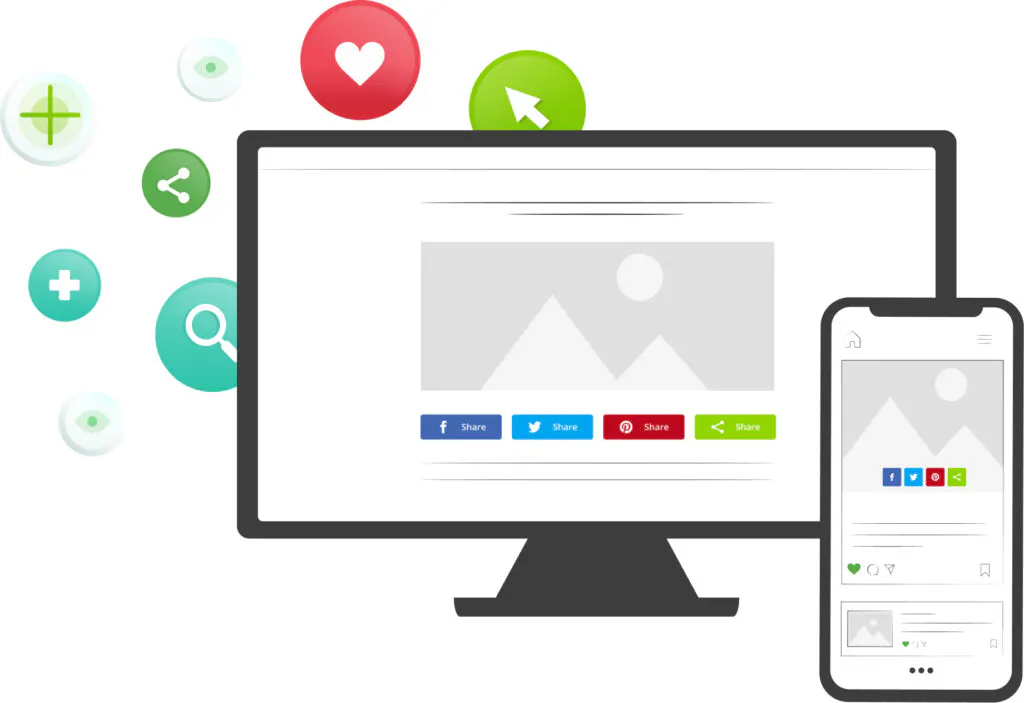
- Choisissez votre type de boutons
Sélectionnez un ou plusieurs outils pertinents pour augmenter le trafic sur votre site. - Personnalisez le design
Sélectionnez les réseaux sociaux et personnalisez les boutons en fonction de votre marque. - Ajoutez le code à votre site
Insérez votre code ShareThis unique dans l'en-tête de votre site Web. - Copiez et collez le code de placement
Ajoutez le code de placement là où vous souhaitez que l'outil apparaisse.
Foire Aux Questions
Vous avez des questions sur nos produits et services ? Ne cherchez pas plus loin !
A ChatGPT share button is a button on your website that opens ChatGPT with a prompt about the page your reader is on. Rather than copying the URL, switching tabs and describing your article from scratch, your visitor clicks once and arrives in a chat that is already pointed at your content.
It sits in the same row as your Facebook, X and LinkedIn buttons, so sharing to an assistant works exactly like sharing to a social network.
People increasingly read with an assistant open beside them. A share button meets that habit head on: it passes ChatGPT your page, with your framing intact, instead of leaving the reader to paste in a bare link.
It is also a useful signal. The pages readers choose to send to an assistant are the pages they want explained, compared or condensed — which tells you where your content is doing the most work.
Open the ShareThis boutons de partage generator, select ChatGPT alongside whatever other networks you want, then copy the two snippets into your site — one in the head or footer, one wherever the buttons should appear. Nothing to install and no paid upgrade.
Plugins sociaux
Nos plugins et applications CMS facilitent l'intégration de nos outils à votre site web.





Obtenez vos boutons de partage
Activer le partage en un seul clic pour augmenter le trafic de votre site dès aujourd'hui