
Boutons de partage
Increase your website’s reach and engagement with customizable share buttons that make content sharing effortless. With just one click, your visitors can spread your posts, products, or pages across 40+ social media channels—helping you boost traffic, visibility, and brand awareness instantly.


Sélectionnez vos réseaux sociaux :
Cliquez sur un réseau pour l'ajouter ou le supprimer de votre aperçu. Nous avons déjà inclus les réseaux les plus populaires.


Boutons de partage en ligne

Boutons de partage flottants
Copy the code below and paste it in the <head></head> or <footer></footer> tags of your website:
Copiez le code de placement ci-dessous et collez-le à l'endroit où vous souhaitez que vos nouveaux boutons d'action apparaissent :

Trusted by Over 3 Million Websites Globally
Sign Up and Get More With a ShareThis Account

Save Your Configurations
Save your button configurations, manage multiple sites, and invite teammates to collaborate.

Unlock Sharing Intelligence®
Harness the power of analytics: see what content gets shared and where your audience engages.

Access All Free Website Tools
Access more free tools to grow traffic, increase engagement, and support privacy and consent needs.
Nos boutons de partage
Permettez aux visiteurs de votre site d'accroître la viralité de votre contenu, de vos produits, de vos images et de vos vidéos sur plus de 40 réseaux sociaux

Boutons de partage en ligne
Ajoutez des boutons de partage près de votre titre ou de votre produit pour une visibilité idéale.

Boutons de partage flottant
Faites en sorte que les boutons de partage soient fixes afin que les visiteurs puissent partager tout en faisant défiler les pages.

Boutons de partage d'images
Permettez à votre public de partager votre contenu visuel le plus puissant

Boutons de partage de vidéos
Permettez à votre public de partager des vidéos sur votre site en un seul clic
AI-Driven Smart Sharing Buttons
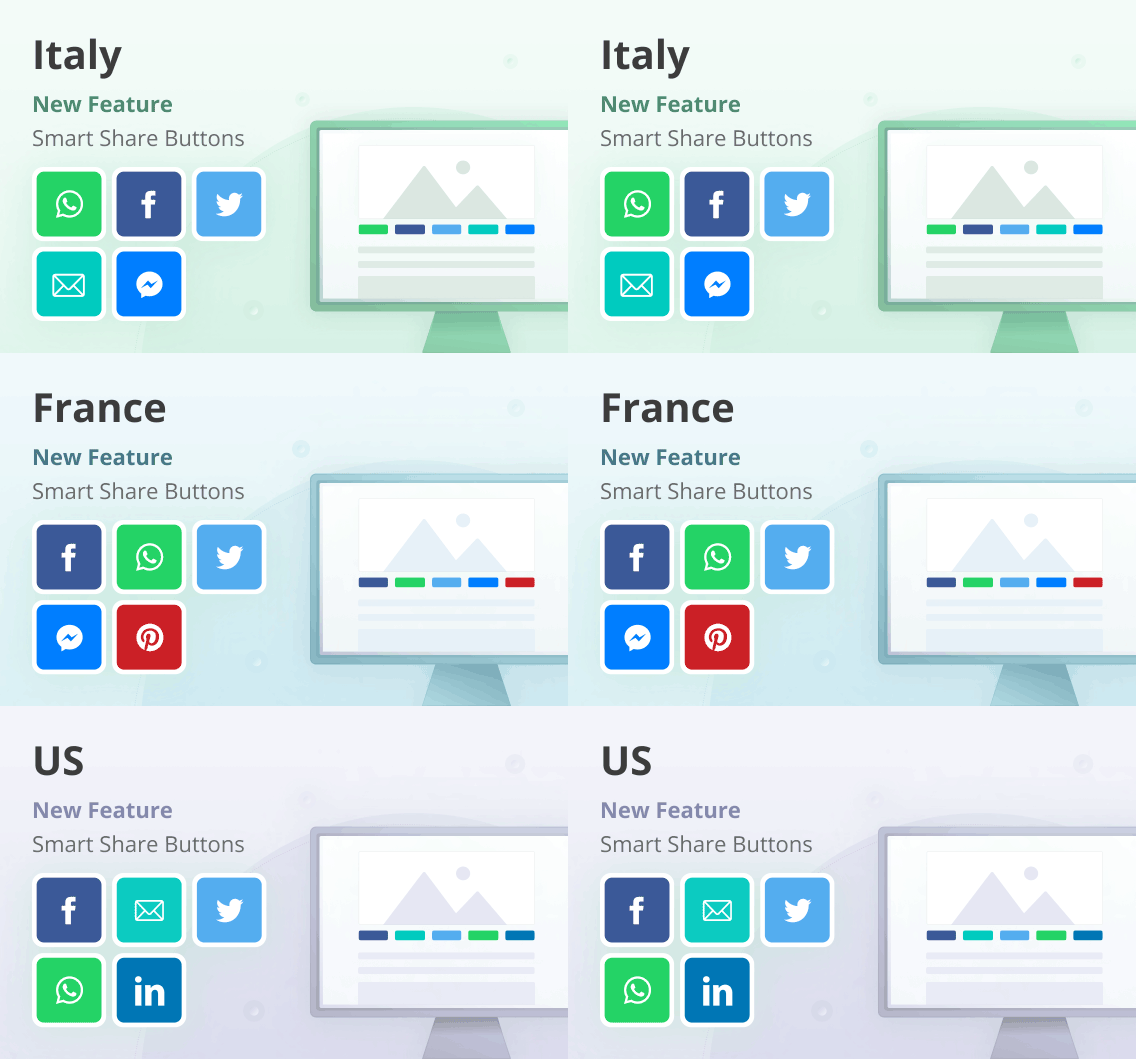
N'hésitez pas à choisir le bon réseaux sociaux pour votre public grâce à notre nouvelle fonction pour Inline et Boutons de partage flottant.
We automatically customize the channels based on the most popular sharing in your user’s region using ML algorithms. Sign up or login to our platform to start driving more engagement for your content or products.
Boutons de partage de réseaux sociaux populaires
Choisissez d'installer des boutons de partage parmi plus de 45 des sites les plus populaires réseaux sociaux.



Utilisation gratuite
Toujours gratuits et prêts à vous aider à immédiatement développer votre audience
Personnalisable
Adaptez la conception, notamment l'alignement, la taille et la couleur, à votre marque.

Optimisé pour mobiles
Conçu pour être fantastique sur n'importe quel écran, petit ou grand

Support multi-langues
Choisissez votre langue préférée parmi plus de 15 options

Plugin WordPress
Une intégration harmonieuse sur votre plateforme logicielle préférée

Analytics
Un aperçu simple et accessible de ce qui touche votre public
Foire Aux Questions
Vous avez des questions sur nos produits et services ? Ne cherchez pas plus loin !
Oui ! Depuis 2007, nous fournissons des boutons de partage gratuits pour faciliter le partage de contenu sur le Web.
Vous pouvez installer les boutons de partage ShareThis sur votre site Web HTML en quelques étapes faciles. Rendez-vous sur la page d'installation et choisissez entre les boutons en ligne ou les boutons flottants.
Sélectionnez ensuite les boutons de partage que vous souhaitez. Vous pouvez personnaliser votre design en choisissant l'alignement, la taille des boutons, l'appel à l'action et le nombre de partages. Une fois que le design de votre bouton est prêt, cliquez sur le bouton "s'enregistrer & obtenir le code" pour obtenir le code de votre bouton.
Consultez ce message d'aide pour en savoir plus sur Comment installer des boutons de partage sur un site Web HTML.
ShareThis : les boutons de partage pour WordPress vous donnent plus de contrôle sur l'emplacement et la façon dont les boutons de partage apparaissent sur votre site. Encore mieux, pas besoin de copier et coller le code, car tout est contrôlé par notre plateforme ainsi que par les configurations de plugin. Télécharger et installer notre plugin sur votre site WordPress prend moins de cinq minutes. Regardez le tutoriel d'installation et essayez dès aujourd'hui !
Pour installer des boutons de partage sur Wix, il suffit de quelques étapes simples . Rendez-vous sur la page d'installation afin de choisir entre Boutons En Ligne et Boutons Flottants.
Ensuite, sélectionnez les boutons de partage que vous souhaitez. Vous pouvez personnaliser votre design en choisissant l'alignement, la taille des boutons, l'appel à l'action et le nombre de partages. Une fois que votre bouton est prêt, cliquez sur le bouton "s'enregistrer & obtenir le code" pour obtenir le code du bouton de partage. Copiez le code sous "Installer sharethis.js sur votre site web". Ensuite, connectez-vous à votre compte Wix pour saisir le code HTML dans la zone de texte.
Consultez ce message d'aide pour en savoir plus sur Comment installer des boutons de partage sur Wix .
Pour installer des boutons de partage sur Weebly, il suffit de quelques étapes simples . Rendez-vous sur la page d'installation afin de choisir entre Boutons En Ligne et Boutons Flottants.
Sélectionnez ensuite les boutons de partage que vous souhaitez. Après avoir choisi les détails de vos boutons de partage, vous pouvez cliquer sur le bouton "s'enregistrer & obtenir le code" pour obtenir le code du bouton de partage. Une fois que votre bouton est prêt, cliquez sur le bouton "s'enregistrer & obtenir le code" pour obtenir le code du bouton. Après avoir conçu vos boutons de partage, vous pouvez cliquer sur le bouton "s'enregistrer & obtenir le code" pour obtenir le code du bouton de partage. Copiez le code sous "Installer sharethis.js sur votre site web". Ensuite, connectez-vous à votre compte Weebly pour saisir le code HTML dans la zone de texte.
Vous préférez personnaliser vos boutons de partage ? Super ! Notre code de partage vous permet de créer des boutons personnalisés à partir de rien. Nous nous occuperons du partage et du comptage pour vous.
Consultez ce message d'aide pour en savoir plus sur Comment créer des boutons de partage personnalisés ShareThis.
Actuellement, certaines plateformes réseaux sociaux (comme Instagram ou Tik Tok) restreignent leur API et il n'est donc pas possible de partager du contenu à travers un point de terminaison par le biais d'une application extérieure à leur environnement. Cependant, nous proposons une Bouton de suivi Instagram, Bouton de suivi Tik Tok (et Plus!) que vous pouvez ajouter en activant les boutons de suivi.
No. When no ShareThis account or property is provided, the script automatically initializes using anonymous mode.
Now all you need to do to use our share buttons is place this script in your website code:
Next, depending on what kind of share buttons you want use, you can simply place the following HTML where you want the buttons to show:
Notice the “data-type” attribute in the first div. It accepts two values “inline-share-buttons” or “sticky-share-buttons”
The value of the data-type attribute determines the button layout:
-inline-share-buttons renders buttons inline within page content.
-sticky-share-buttons renders floating buttons on the left or right side of the browser window.
Each <strong><span></strong> inside the container represents a social network, defined by its <strong>data-network</strong> attribute.
To add a social media network button, place a element with a data-network attribute inside the ShareThis wrapper
The value of data-network must be the lowercase identifier of a supported social network.
Example wrapper:
Example network button:
You can include multiple elements inside the wrapper. The order of the elements determines the order in which the buttons appear.
Complete example:
Once added, the corresponding social network buttons will automatically render on your website.
The current list of supported social media networks you can place in your share buttons container code are:
‘facebook’
‘x’
’email’
‘whatsapp’
‘linkedin’
‘reddit’
‘tumblr’
‘diigo’
‘digg’
‘flipboard’
‘copy’
‘meneame’
‘fark’
‘facebook-messenger’
‘odnoklassniki’
‘sina-weibo’
‘vk’
‘blogger’
‘snapchat’
‘xing’
‘mail-ru’
‘livejournal’
‘pinterest-pin’
‘buffer’
‘douban’
‘evernote’
‘bookmarks’
‘gmail’
‘hackernews’
‘houzz’
‘instapaper’
‘line’
‘pocket’
‘print’
‘qzone’
‘iorbix’
‘kakao’
‘kindleit’
‘kooapp’
‘microsoftteams’
‘naver’
‘nextdoor’
‘outlook’
‘plurk’
‘pinboard’
‘tencentqq’
‘trello’
‘viber’
‘yummly’
‘diaspora’
‘surfingbird’
‘refind’
‘renren’
‘skype’
‘telegram’
‘threema’
‘yahoomail’
‘wordpress’
‘wechat’
You can change the order of your social network share buttons by reordering the <strong><span></strong> elements inside the ShareThis wrapper <strong><div></strong>.
The buttons will appear on your website in the same order as the <strong><span data-network></strong> elements in your HTML.
For example, if your buttons are initially ordered like this:
And you want Facebook to appear after LinkedIn, update the order like this:
After this change, the Facebook button will appear after the LinkedIn button.
To remove a social network share button, delete the corresponding <strong><span></strong> element with the matching <strong>data-network</strong> attribute from the ShareThis button container <strong><div></strong>.
For example, if your buttons are defined like this:
To remove the Facebook button, delete the <strong><span></strong> with <strong>data-network=”facebook”</strong>:
After removing the span, the Facebook share button will no longer appear on your website.
You can change the size of <strong>Inline Share Buttons</strong> by adding a <strong>data-size</strong> attribute to the ShareThis button container <strong><div></strong>.
There are three supported size values:
- small (default)
- moyen
- large
By default, inline share buttons use the small size.
Default container
How do I change the labels that show next to the social network icon in my share buttons?
You can change the labels shown next to each social network icon by adding a <strong>data-labels</strong> attribute to your share button container <strong><div></strong>.
This works for both inline share buttons and sticky share buttons.
There are three supported label options:
- cta — shows a call-to-action label (for example: “Share”, “Tweet”)
- counts — shows the share count next to each icon
- none — hides labels and shows icons only
By default, share buttons use the cta label option.
Default container (inline or sticky)
ou
Example: showing share counts as labels
How do I show share counts next to my social network share buttons?
By default, ShareThis buttons do not display the total share count for the current page.
To enable the total share count, add the <strong>data-show_total=”true”</strong> attribute to your share button container <strong><div></strong>.
This works for both inline share buttons and sticky share buttons.
Default container
ou
How do I change the alignment and move my sticky floating share buttons from the left to the right side?
By default, sticky share buttons float on the left side of the user’s browser window.
To move your sticky share buttons to the right side, add the data-alignment attribute to your share button container and set its value to “right”.
Note: This setting only applies to sticky share buttons.
Default container
Plugins sociaux
Nos plugins et applications CMS facilitent l'intégration de nos outils à votre site web.
Note moyenne des utilisateurs
पटीर
2018-11-09Outil impressionnant
2018-11-15Un excellent Widget !
2019-07-01Outil formidable
2019-09-03Affiliate Marketer
2019-11-29Un outil génial
2020-07-17Application utile
2020-07-27Le meilleur outil de partage sur terre !
2020-10-02Une mise en œuvre facile, des résultats optimaux
2021-11-24Un outil fantastique
2021-11-28Nouvelle année 2022
2022-01-19Un outil facile à utiliser
2022-02-06Un outil formidable
2022-04-08Un outil formidable !
2022-07-27J'adore !
2022-09-01J'adore !
\n\nNext, depending on what kind of share buttons you want use, you can simply place the following HTML where you want the buttons to show:\n\n
\n\n\n\nNotice the \"data-type\" attribute in the first div. It accepts two values \"inline-share-buttons\" or \"sticky-share-buttons\"
The value of the data-type attribute determines the button layout:
-inline-share-buttons renders buttons inline within page content.\n\n-sticky-share-buttons renders floating buttons on the left or right side of the browser window.
Each inside the container represents a social network, defined by its data-network attribute.\n"
}
},
{
"@type": "Question",
"name": "How do I add social media networks button to my share buttons?",
"acceptedAnswer": {
"@type": "Answer",
"text": "\nTo add a social media network button, place a element with a data-network attribute inside the ShareThis wrapper\n\nThe value of data-network must be the lowercase identifier of a supported social network.\n\nExample wrapper:
\n\n
\n\nExample network button:\n\n
\n\nYou can include multiple elements inside the wrapper. The order of the elements determines the order in which the buttons appear.\n\n
Complete example:\n\n
\n\nOnce added, the corresponding social network buttons will automatically render on your website.\n"
}
},
{
"@type": "Question",
"name": "What social media networks are supported?",
"acceptedAnswer": {
"@type": "Answer",
"text": "\n
The current list of supported social media networks you can place in your share buttons container code are:
'facebook'
'x'
'email'
'whatsapp'
'linkedin'
'reddit'
'tumblr'
'diigo'
'digg'
'flipboard'
'copy'
'meneame'
'fark'
'facebook-messenger'
'odnoklassniki'
'sina-weibo'
'vk'
'blogger'
'snapchat'
'xing'
'mail-ru'
'livejournal'
'pinterest-pin'
'buffer'
'douban'
'evernote'
'bookmarks'
'gmail'
'hackernews'
'houzz'
'instapaper'
'line'
'pocket'
'print'
'qzone'
'iorbix'
'kakao'
'kindleit'
'kooapp'
'microsoftteams'
'naver'
'nextdoor'
'outlook'
'plurk'
'pinboard'
'tencentqq'
'trello'
'viber'
'yummly'
'diaspora'
'surfingbird'
'refind'
'renren'
'skype'
'telegram'
'threema'
'yahoomail'
'wordpress'
'wechat'\n"
}
},
{
"@type": "Question",
"name": "How do I change the order of my social network share buttons?",
"acceptedAnswer": {
"@type": "Answer",
"text": "\n
You can change the order of your social network share buttons by reordering the elements inside the ShareThis wrapper .\n\nThe buttons will appear on your website in the same order as the elements in your HTML.\n\nFor example, if your buttons are initially ordered like this:\n\n
\n\nAnd you want Facebook to appear after LinkedIn, update the order like this:\n\n
\n\nAfter this change, the Facebook button will appear after the LinkedIn button.\n"
}
},
{
"@type": "Question",
"name": "How do I remove one of my social network share buttons?",
"acceptedAnswer": {
"@type": "Answer",
"text": "\n
To remove a social network share button, delete the corresponding element with the matching data-network attribute from the ShareThis button container .\n\nFor example, if your buttons are defined like this:\n\n
\n\nTo remove the Facebook button, delete the with data-network=\"facebook\":\n\n\n\nAfter removing the span, the Facebook share button will no longer appear on your website.\n"
}
},
{
"@type": "Question",
"name": "How do I change the size of my share buttons?",
"acceptedAnswer": {
"@type": "Answer",
"text": "\n
You can change the size of Inline Share Buttons by adding a data-size attribute to the ShareThis button container .\n\nThere are three supported size values:\n\n
\n- small (default)\n\n\n\n
- medium\n\n\n\n
- large\n\n\n
By default, inline share buttons use the small size.\n\nDefault container\n\n